


How to Optimize Website Images for SEO (Complete 2026 Guide)
By Josh Ternyak

April 18, 2026
Complete image SEO optimization guide covering WebP/AVIF formats, compression, alt text, lazy loading, LCP preloading, sitemaps, CDNs, and monitoring.
How to Optimize Website Images for SEO
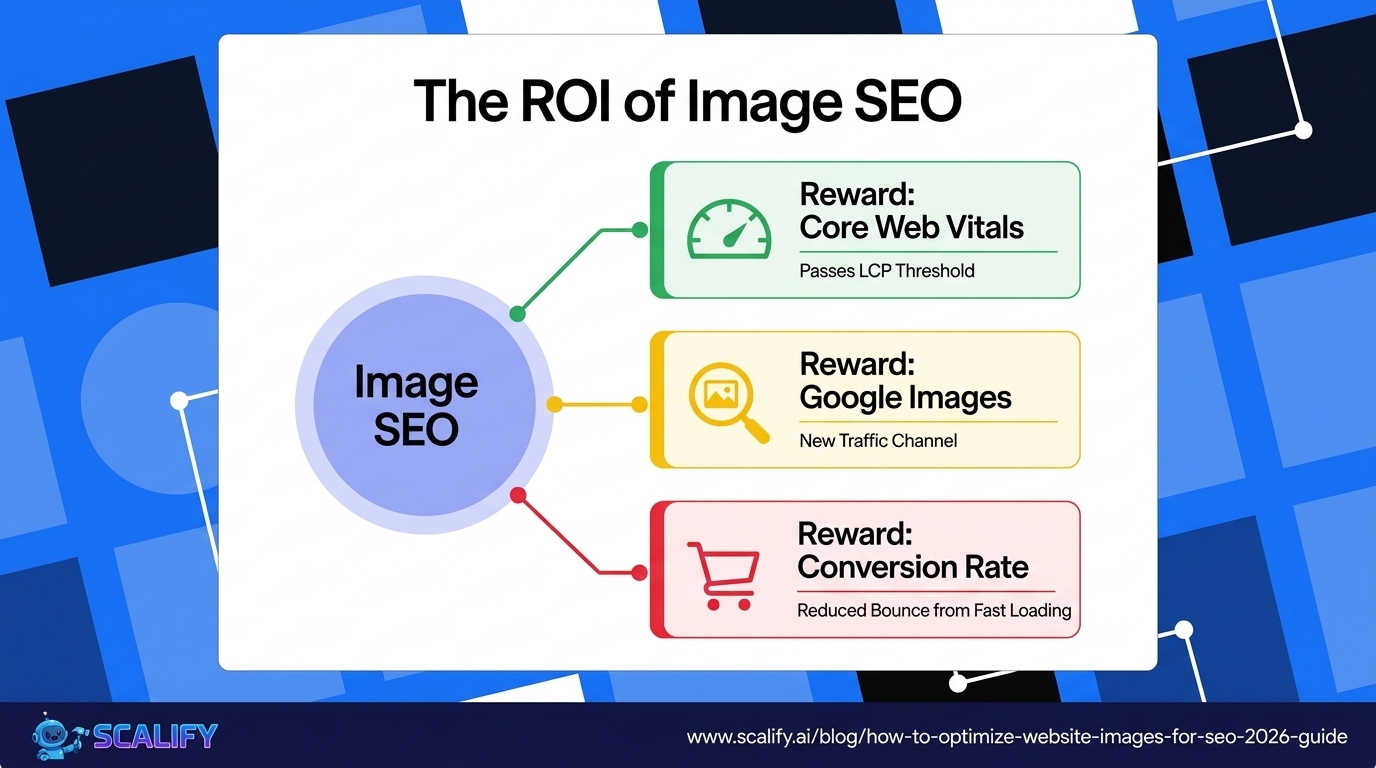
Image optimization for SEO is one of the most overlooked and highest-ROI technical improvements available to most websites. Images represent the majority of page weight on most modern websites — unoptimized images are simultaneously the primary cause of failing Core Web Vitals (directly affecting rankings) and the primary cause of slow load times (directly affecting conversion rates). A website that properly optimizes its images gains on all three fronts: better Core Web Vitals scores, improved search rankings, and faster load times that improve conversion. And image SEO extends beyond performance: properly optimized images rank in Google Images, adding an additional traffic channel for visual content.
Key Image SEO Statistics
The Complete Image SEO Checklist
1. File Format: Use WebP
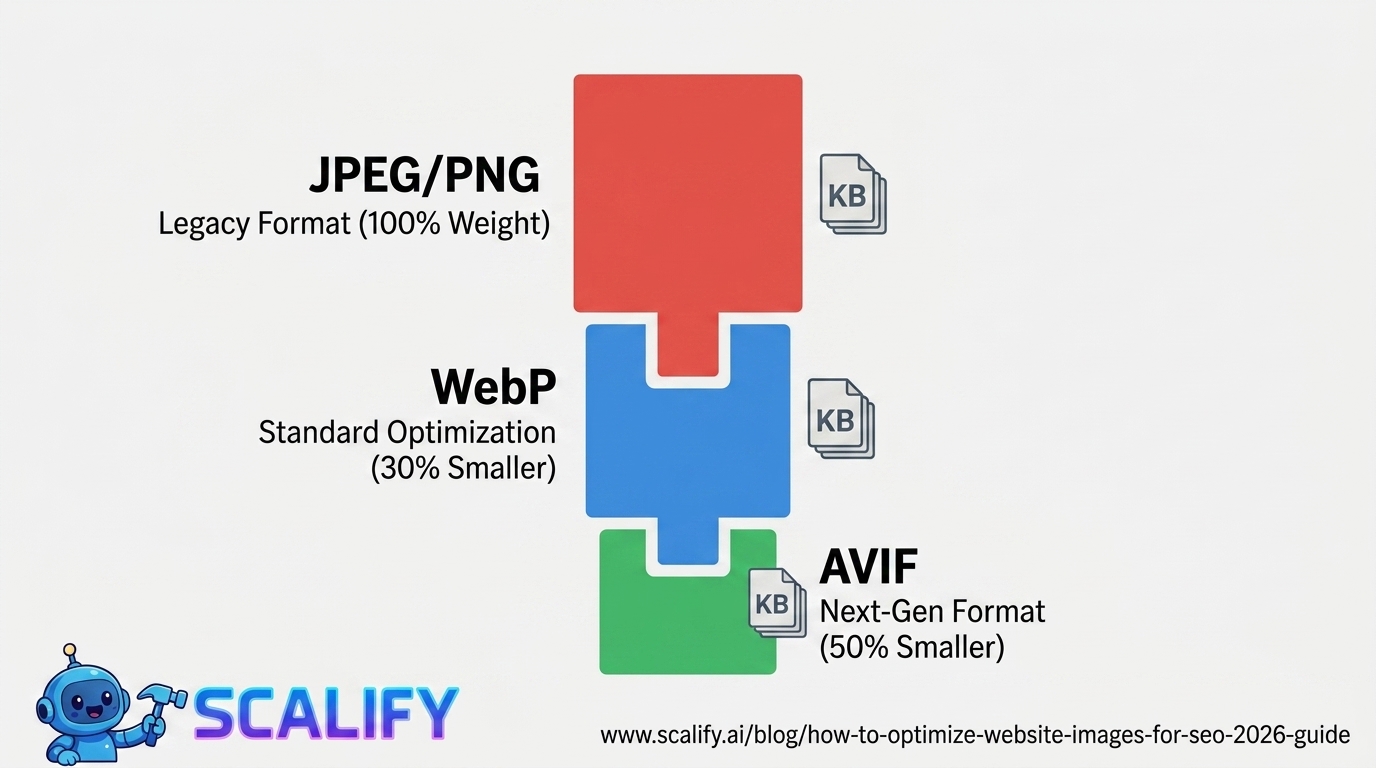
WebP is the current recommended format for web images — supported by all modern browsers and 25–34% smaller than JPEG at equivalent quality. For most web use cases, WebP replaces JPEG for photographs and PNG for images with transparency. Implementation: convert images to WebP before uploading (use Squoosh.app free tool), or configure your server/CDN to serve WebP automatically to supporting browsers with JPEG fallback for older ones. WordPress with the EWWW Image Optimizer or Imagify plugin handles this automatically. Next.js's next/image component serves WebP automatically with zero configuration.
2. File Size: Compress Before Upload
Image TypeTarget File SizeToolHero/banner imagesUnder 200KB (ideally under 100KB)Squoosh, TinyPNGProduct photosUnder 100KB per imageSquoosh, ImagifyBlog post imagesUnder 80KBTinyPNG, ShortPixelThumbnails / iconsUnder 20KBAny compression toolFull-screen background imagesUnder 300KB (optimize carefully)Squoosh at lower quality setting
3. Dimensions: Serve the Right Size
Uploading a 4000×3000px image to display at 800×600px forces the browser to download 25x more pixels than it needs, then scale the image down. This wastes bandwidth and increases LCP. Always resize images to the display dimensions before uploading. Responsive images (serving different sizes for different screen sizes) require the srcset attribute or an image optimization service:
<img src="image-800.webp"
srcset="image-400.webp 400w, image-800.webp 800w, image-1200.webp 1200w"
sizes="(max-width: 600px) 400px, (max-width: 900px) 800px, 1200px"
alt="Descriptive alt text" loading="lazy">
4. Alt Text: The SEO and Accessibility Requirement
Alt text is both an SEO signal (tells Google what the image shows) and an accessibility requirement (describes images to screen reader users). Effective alt text is: descriptive of the actual image content, naturally includes relevant keywords where appropriate, and avoids keyword stuffing that describes what you want to rank for rather than what the image shows. Examples:
5. File Names: Descriptive Before Upload
Search engines read file names and use them as relevance signals. "IMG_3456.jpg" provides no SEO value. "miami-web-design-team.webp" clearly communicates the image's subject. Rename images to descriptive, hyphen-separated filenames before uploading — this is a 10-second action that provides ongoing SEO benefit for every image on the site.
6. Lazy Loading: Don't Load What Isn't Visible
Lazy loading defers image loading until the image is about to enter the viewport — reducing the initial page load to only the images visible above the fold. Implementation is a single HTML attribute: loading="lazy" on any image that isn't in the initial viewport. Important: never lazy load the LCP image (the hero image or the first significant image on the page) — that's the image you want to load as fast as possible, not defer.
7. Preload the LCP Image
The LCP element is an image 72% of the time — and improving LCP starts with loading that image faster. Add a preload hint in the page's <head>:
<link rel="preload" as="image" href="hero-image.webp" fetchpriority="high">
This tells the browser to start loading the image immediately — before it finishes parsing the page body. Combined with WebP format and proper sizing, LCP preloading typically produces 350–500ms improvement in LCP score — often the difference between failing and passing the Core Web Vitals threshold.
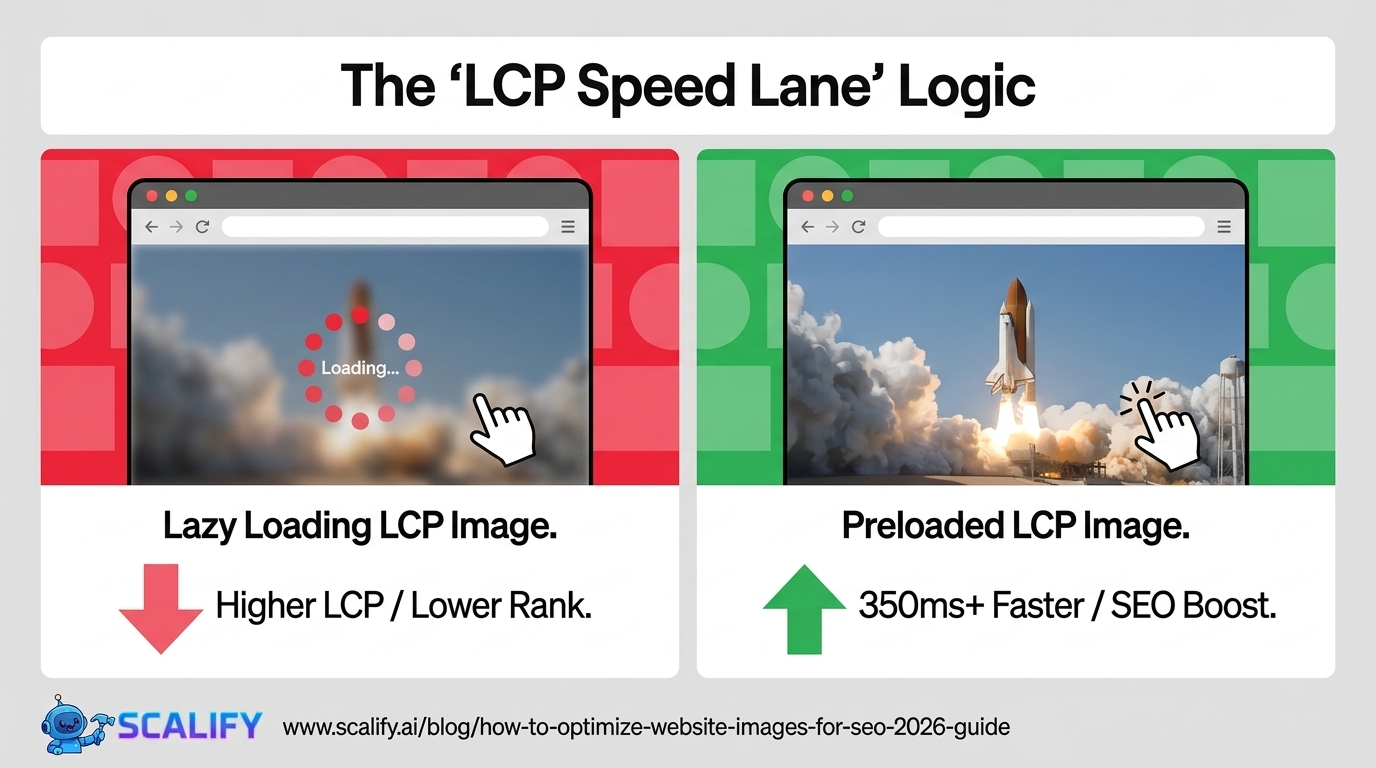
Image Sitemap: Indexing Images for Google Images Traffic
Image sitemaps tell Google about images on your site that might not be discovered through standard crawling. While Google can discover most images from HTML, an image sitemap helps ensure all images are indexed and provides additional context (caption, title, license). For WordPress, Yoast SEO and RankMath automatically include images in the sitemap. For other platforms, create a separate image sitemap at /image-sitemap.xml including all important images with their URL, title, caption, and alt text.
Structured Data for Images
Schema markup for images helps Google understand and display image-rich content in search results. The most valuable image structured data: Product schema with product images (enables product carousels in search), Recipe schema with recipe photos (enables recipe-rich results), Article schema with author and featured image (improves News and Discover visibility), and ImageObject schema for standalone image pages (useful for photography and art sites targeting Google Images traffic).
Image CDN: Serving Images at Global Speed
An image CDN serves images from servers closest to each visitor — eliminating the latency of serving images from a single origin server to visitors worldwide. Most website hosting CDNs (Cloudflare, Vercel's Edge Network) serve all assets including images from global edge locations. For sites where image loading speed is particularly critical — high-traffic e-commerce, image-heavy portfolios — a dedicated image CDN like Cloudinary or Imgix adds automatic format conversion (WebP, AVIF), on-the-fly resizing, and global edge delivery. Cloudinary's free tier handles 25GB of storage and 25GB of monthly bandwidth — sufficient for most SMBs without any cost.
Common Image SEO Mistakes
MistakeImpactFixUploading 4MB+ images without compressionVery High — causes Core Web Vitals failuresCompress to under 200KB before uploadNo alt text on imagesHigh — accessibility failure + lost Google Images rankingsAdd descriptive alt text to all non-decorative imagesLazy loading the LCP imageHigh — directly worsens LCP scoreRemove loading="lazy" from above-fold/LCP imageUsing PNG for all imagesMedium-High — PNG files are 2–5x larger than WebPSwitch photographs to WebP; keep PNG only for logos with transparencyGeneric file names (IMG_1234.jpg)Medium — missed keyword signalRename before upload with descriptive hyphenated namesNot setting explicit image dimensionsMedium — causes CLS (layout shift)Always set width and height on img elements
The Bottom Line
Image optimization is the single highest-ROI technical improvement available to most websites — combining performance improvements (direct Core Web Vitals and ranking impact), conversion improvements (faster load times), and additional traffic from Google Images. The implementation is straightforward: convert to WebP, compress before upload, add descriptive alt text and file names, lazy load below-fold images, preload the LCP image, and serve from a CDN. These changes require minimal ongoing effort once implemented and produce durable benefits across every page that contains images — which is most pages on most websites.
At Scalify, every website we build includes image optimization built in — WebP format, proper compression, lazy loading, LCP preloading, and descriptive alt text on every image from day one.
Top 5 Sources
Image Compression Tools: A Practical Comparison
ToolTypeBest ForCostSquoosh (squoosh.app)Browser-basedManual compression of individual images with quality previewFreeTinyPNG / TinyJPGBrowser-basedQuick batch compression; simple interfaceFree (500/month)ShortPixelWordPress plugin + APIBulk retroactive compression of existing media library$4.99/monthImagifyWordPress pluginAutomatic compression on upload with WebP conversionFree tier + $4.99/moCloudinaryImage CDN + APIAutomated format conversion, resizing, and global deliveryFree tier; paid from $89/moEWWW Image OptimizerWordPress pluginFree bulk compression for WordPress; WebP conversion includedFree
For most small business websites and blogs, the free Squoosh tool for individual images and EWWW or ShortPixel for bulk WordPress library compression covers all image optimization needs without any ongoing cost. For high-traffic e-commerce or media sites where image delivery at scale is critical, Cloudinary's CDN and optimization pipeline adds significant value through automatic format conversion, on-the-fly resizing, and global edge delivery.
Image SEO for E-Commerce: Product Photography Optimization
E-commerce product images have specific optimization requirements that differ from general web images. Product photos appear in Google Shopping results and Google Images product searches — both high-commercial-intent discovery channels that are worth optimizing for specifically.
E-commerce image SEO best practices: use consistent product image dimensions across all products (makes pages faster to render and provides consistent visual experience), shoot products on white or neutral backgrounds (Google Images and Shopping favor clean product isolation), include multiple angles per product (Google shows image carousels in Shopping; more images = more discovery surface), and implement Product schema markup with images (enables enhanced Shopping results showing product details alongside images in search). For each product image, ensure the file name and alt text describe the product specifically: "blue-merino-wool-sweater-front-view.webp" with alt text "Navy blue merino wool crewneck sweater — front view" outperforms "product-123.jpg" with alt="product" in every image search dimension.
Monitoring Image Performance
Image optimization isn't a one-time task — new images are added, pages are updated, and the optimization standard drifts over time. The monitoring setup that catches image performance regression: Google Search Console's Core Web Vitals report flags LCP failures that are almost always image-related, PageSpeed Insights run quarterly on key pages identifies specific image issues with actionable recommendations, and Screaming Frog's image audit (Image → Filter by size) identifies oversized images (over 200KB) and missing alt text across the entire site. Building these checks into a quarterly technical audit prevents the gradual accumulation of unoptimized images that degrades performance steadily without any single obvious event causing the problem.
Next-Generation Formats: AVIF and the Future of Image Compression
AVIF (AV1 Image File Format) is the next-generation image format after WebP, offering 50% smaller file sizes than JPEG at equivalent quality. Browser support has improved significantly — Chrome, Firefox, and Safari all support AVIF in 2026, covering approximately 90% of global web traffic. For sites that can tolerate slightly longer encoding times (AVIF encoding is slower than WebP), it represents the cutting edge of image compression with meaningful file size benefits over WebP. The progressive adoption path: use WebP for most images now, begin testing AVIF for the most impactful large images (hero images, product photography), and monitor browser support metrics to determine when switching the default makes sense for your audience. The HTML picture element enables serving AVIF to supporting browsers with WebP and JPEG fallbacks for older ones:
<picture><source type="image/avif" srcset="image.avif"><source type="image/webp" srcset="image.webp"><img src="image.jpg" alt="Description" loading="lazy"></picture>
Image optimization is a discipline where the investment directly and measurably improves business outcomes through better rankings, faster load times, and additional Google Images traffic — making it one of the most consistently rewarding areas of technical SEO investment for any image-heavy website.
The combination of format optimization (WebP/AVIF), compression, correct sizing, alt text, lazy loading, and LCP preloading can reduce total page weight by 60–80% on image-heavy pages while simultaneously improving search visibility through better Core Web Vitals scores and descriptive metadata. For any website where images are a significant part of the content, this optimization work is among the highest-priority technical improvements available — affecting rankings, conversions, and user experience simultaneously with a single coordinated effort.





























































.jpeg)


.jpeg)


































78 SW 7th St, Miami, FL 33130


