


How to Use Video Backgrounds on a Website Without Hurting Performance
By Josh Ternyak

April 22, 2026
Video backgrounds can make websites feel cinematic and immersive — but implemented poorly, they destroy performance, alienate users on slow connections, and fail accessibility requirements. This guide covers every technical and design decision for getting them right.
The Most Dramatic Element in Web Design — and One of the Riskiest
A well-executed video background can transform a website's first impression. The moment a visitor arrives and a beautifully shot, seamlessly looping video fills the hero section — a chef's hands working dough, the time-lapse of a building being constructed, athletes training at dawn — something clicks. The visitor is transported into the brand's world before they've read a single word. The emotional connection is immediate and visceral in a way that static imagery can rarely achieve.
This is why video backgrounds remain a compelling choice for certain websites despite all the practical concerns they introduce. The potential upside — emotional impact, differentiation, brand storytelling — is real. So are the risks: degraded Core Web Vitals, high data consumption that frustrates users on mobile or slow connections, accessibility failures for users who need reduced motion, and the technical complexity of maintaining quality across wildly different devices and connection speeds.
The difference between a video background that elevates a website and one that damages it comes down entirely to implementation. This guide covers every decision — from video production through technical implementation through fallbacks — that determines whether a video background helps or hurts.
When Video Backgrounds Are Worth Considering
Video backgrounds aren't appropriate for all sites or all contexts. Before considering the technical implementation, the strategic question: does a video background serve this specific site's goals?
Video backgrounds tend to work well when:
The brand story is highly visual and kinetic. Some businesses are naturally cinematic — adventure travel, restaurants, high-end hospitality, fashion, athletics, construction, manufacturing. When the actual work looks compelling in motion, video captures something static photography can't.
The product or service is difficult to understand from text alone. A manufacturing process, a culinary technique, a construction methodology — these communicate more effectively as moving images than as words or still photographs. The video background becomes the explanation.
The brand is competing in a visually mature category. In categories where competitors already have strong visual identity, video can be a differentiation tool. In categories where most competitors use stock photography, even a modest video production can create significant visual advantage.
The site's primary audience is on reliable connections. A B2B enterprise software company whose prospects are office workers on fiber connections faces different implementation constraints than a consumer retail site whose audience includes mobile users on variable connections.
Video backgrounds are wrong for sites where:
Video Production Requirements for Web Backgrounds
Web video backgrounds have specific production requirements that differ from video produced for other purposes. A video shot for a commercial, a promotional piece, or social media may not be appropriate for background use without modification.
Visual Requirements
Clean, loopable content: The video must loop seamlessly without a visible cut or jump at the end point. This requires either starting and ending in a similar visual position (a slow pan that returns to start), shooting content that loops naturally (a process that repeats: dough being kneaded, a machine cycle, waves on a shore), or post-production work to create an invisible transition between end and beginning.
Appropriate visual complexity: Highly detailed, fast-moving video creates visual complexity that competes with any text overlaid on it. Background video must be secondary to the content above it — not so visually active that it demands attention. Slow-motion video, wide establishing shots, abstract motion, and subtle environment footage tend to work better as backgrounds than fast-edited narrative video.
Composition for text overlay: The video will typically have text, buttons, and other UI elements placed on top of it. The composition should account for this: areas of the frame where text will sit need to be either uniformly dark or light (for text contrast), or the video will need a color overlay to create the contrast. Cluttered, complex areas of the frame behind text create contrast failures.
No critical information in the video: The video is a background, not a primary communication vehicle. Any information that exists only in the video (text, diagrams, specific visual details) is inaccessible to users who don't see the video — users on mobile where video may not load, users who've enabled reduced-motion preferences, users with bandwidth limitations, and screen reader users. The video communicates atmosphere; the copy communicates information.
Duration: 10–30 seconds is typically the appropriate range for looping background video. Shorter loops become repetitively obvious. Longer loops have larger file sizes without necessarily providing additional value, since visitors don't stay in the hero section long enough to see a 60-second loop play through.
Technical Production Specs
Resolution: Shoot at 4K (3840×2160) for maximum source quality. Export for web at 1920×1080 (1080p) — higher resolution adds file size without corresponding visual benefit when the video is displayed at full-browser-width scale on typical displays. For retina displays, a 2560×1440 (2K) version can be served optionally.
Frame rate: 24fps gives a cinematic quality; 30fps gives a more natural motion feel. Higher frame rates (60fps) are unnecessary for background video and create larger files without relevant quality improvement in this use case.
Bit rate: Higher bit rates preserve more quality but create larger files. Target 2–4 Mbps for web delivery — enough for good quality in a compressed format without excessive file size.
Format and Compression: The Technical Core
How the video is encoded and delivered is the primary determinant of performance impact. The same video, encoded differently, might load as a 2MB background or as a 40MB background. The 40MB version will destroy page performance; the 2MB version might be acceptable.
Format Selection
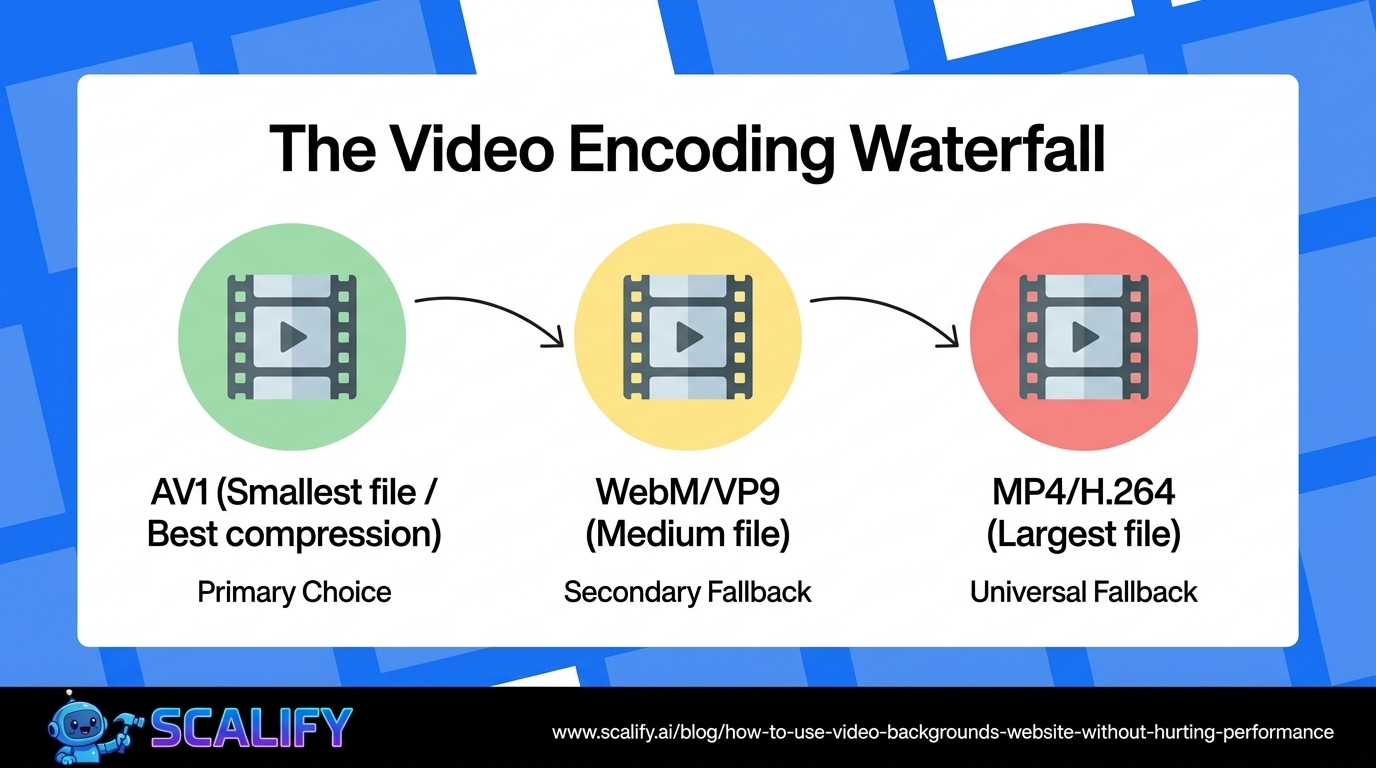
MP4 (H.264 codec): The universal fallback format. Supported by all browsers without exception. H.264 compression is mature and efficient. For a 15-second background video at 1080p, a well-compressed H.264 MP4 should land between 2–6MB.
WebM (VP9 or AV1 codec): The modern web video format. VP9 provides approximately 30–50% smaller files than H.264 at equivalent quality. AV1 (the next generation) provides even better compression — 50%+ smaller than H.264 — but encoding is more computationally intensive and browser support, while now universal, is newer. Serve WebM to browsers that support it (all modern browsers), with MP4 as a fallback.
The HTML implementation serving WebM to capable browsers with MP4 fallback:
<video autoplay muted loop playsinline preload="metadata">
  <source src="hero.av1.webm" type="video/webm; codecs=av1">
  <source src="hero.vp9.webm" type="video/webm; codecs=vp9">
  <source src="hero.mp4" type="video/mp4">
</video>
The browser evaluates sources in order and uses the first one it supports, so place the most compressed format first.
Compression Tools
FFmpeg (command line, free): The most powerful video processing tool available. Can encode any format, any codec, with complete control over compression settings. The learning curve is steep but the capability is unmatched. Basic command for web-optimized MP4:
ffmpeg -i source.mp4 -vcodec h264 -acodec aac -b:v 2M -vf scale=1920:-2 output.mp4
HandBrake (GUI, free): A user-friendly frontend for FFmpeg. Good presets for web video, easier to use than raw FFmpeg commands, adequate for most use cases.
Adobe Media Encoder: Professional-grade encoding with presets and batch processing. Required if you're working within an Adobe Creative Cloud workflow.
Cloudinary (cloud service): Video CDN with automatic format selection (serves WebM or MP4 based on browser capability), automatic quality optimization, and global CDN delivery. Adds cost but eliminates the technical complexity of format management.

Critical HTML Attributes for Background Video
The HTML video element has specific attributes that are essential for background video use — not optional best practices, but required for the video to function correctly as a background.
autoplay: The video must play automatically. Without this attribute, the video is paused on the first frame and requires user action to play. For a background video, this breaks the entire purpose.
muted: Browsers require videos to be muted for autoplay to work. An unmuted video that autoplays audio when a visitor arrives is a user experience failure — and most browsers will refuse to autoplay it. Background video must be muted.
loop: The video must loop continuously. Without this, it plays once and stops on the last frame.
playsinline: Required for iOS. Without this attribute, Safari on iPhone will open the video in fullscreen playback mode instead of playing it inline on the page.
preload="metadata": This tells the browser to fetch only the video metadata (duration, dimensions) on initial page load, not the full video file. The video data then loads progressively. Using preload="auto" would start downloading the full video immediately, negatively impacting page load performance.
Mobile Considerations: The Critical Constraint
Mobile is where video backgrounds most commonly fail. The reasons:
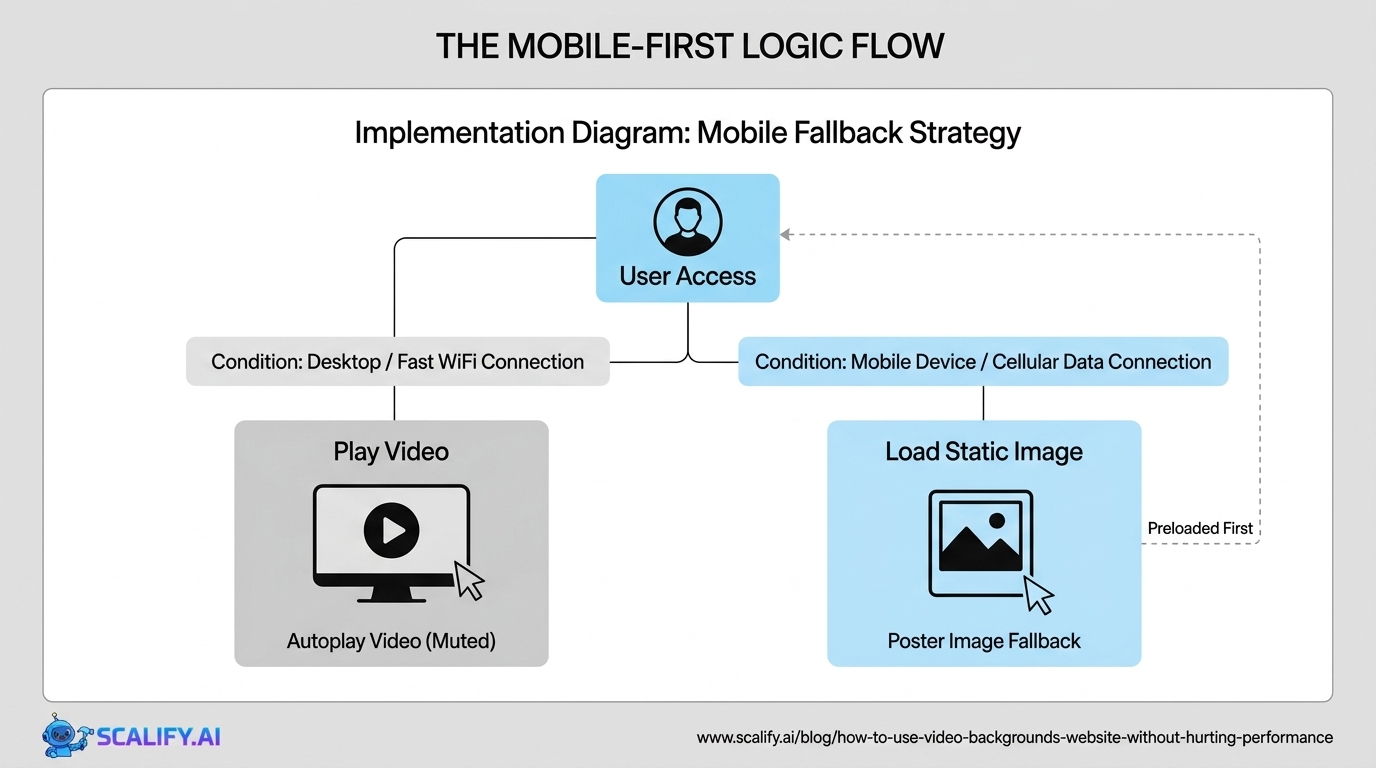
Autoplay restrictions: iOS Safari specifically does not autoplay video on cellular connections by default (it will autoplay on WiFi). Android Chrome has similar restrictions. A video background that relies on autoplay will be a static poster image on a significant percentage of mobile devices.
Performance impact: Decoding video requires CPU and GPU resources. On mid-range and older smartphones, background video can significantly impact scrolling performance and battery life.
Data consumption: A 5MB video background consumes 5MB of a mobile user's data plan. Users on limited data plans or slow connections experience this negatively.
The recommended approach for mobile: serve a high-quality static image fallback instead of video to mobile users. This is achievable through CSS media queries or JavaScript device detection:
/* CSS approach - show video on desktop, image on mobile */
.hero-video {
  display: none;
}

@media (min-width: 768px) {
  .hero-video {
    display: block;
  }
  .hero-fallback-image {
    display: none;
  }
}
The video element's poster attribute provides a static image that displays before the video loads and on devices where video doesn't play. Always set this to a well-chosen still frame from the video.
Accessibility: The prefers-reduced-motion Requirement
Users who have set their operating system to "Reduce Motion" (available in iOS Settings, macOS System Settings, Windows Ease of Access, and most Linux desktop environments) have indicated a preference for reduced animation — often due to vestibular disorders, epilepsy, or other conditions where motion causes discomfort or can trigger serious symptoms.
For these users, an autoplaying background video must either pause or be replaced with a static image. This is a WCAG accessibility requirement (2.2.2) and an ethical responsibility. Implementation:
@media (prefers-reduced-motion: reduce) {
  .hero-video {
    display: none;
  }
  .hero-fallback-image {
    display: block;
  }
}

/* JavaScript approach - pause video when reduced motion is preferred */
const video = document.querySelector('.hero-video');
const prefersReducedMotion = window.matchMedia('(prefers-reduced-motion: reduce)');

if (prefersReducedMotion.matches) {
  video.pause();
  video.removeAttribute('autoplay');
}
Additionally, providing a visible play/pause control for the video respects users who don't have system-level preferences set but who personally prefer not to have moving content on the page.
Performance Optimization: Limiting Core Web Vitals Impact
The video background's primary performance concern is Largest Contentful Paint (LCP) — the Core Web Vitals metric measuring how quickly the page's largest visible content element loads. If the video background is the LCP element, loading delays directly impact your Core Web Vitals score and search rankings.
Strategies to limit impact:
Use a high-quality poster image as the LCP element: Set the video's poster attribute to a well-optimized image. The poster image loads immediately and serves as the visual placeholder until the video is ready. The poster image, not the video, becomes the LCP element if the poster loads before the video first frame. Optimize the poster image aggressively — it should be a WebP file under 100KB.
Preload the poster image: Add a <link rel="preload"> tag in the document head for the poster image to ensure it loads as quickly as possible.
CDN delivery: Serve video files from a CDN with global edge locations, not from your origin server. The geographic proximity of the CDN edge to the visitor dramatically reduces transfer time.
Keep file sizes under 5MB: This is a practical target, not a hard limit. Well-compressed WebM for a 15-second 1080p video should land under 3MB; H.264 MP4 under 5MB. Larger files will cause noticeable loading delays on typical connections.
Text Overlay and Visual Contrast
Text overlaid on video backgrounds must meet WCAG contrast requirements (4.5:1 for normal text, 3:1 for large text) at all points during the video's playback — not just at specific frames. A video that has light areas in some frames and dark areas in others creates contrast failures at unpredictable moments.
Solutions:
The Bottom Line
Video backgrounds, implemented correctly, are one of the most powerful atmospheric tools in web design. Implemented incorrectly, they're a performance liability, an accessibility failure, and a mobile experience nightmare. The gap between these outcomes is entirely technical: file format, compression level, mobile handling, reduced-motion support, and text contrast.
The implementation checklist: use WebM (VP9 or AV1) with MP4 fallback, target under 5MB total file size, serve a static image on mobile, respect prefers-reduced-motion with a pause or fallback, set the poster attribute to a well-optimized still frame, and ensure adequate text contrast across the full video playback range.
At Scalify, when video backgrounds are part of a design concept, we implement them with the full technical stack — optimized formats, mobile fallbacks, accessibility compliance, and performance monitoring — because a video background that hurts the site's performance or alienates mobile users is worse than no video at all.





























































.jpeg)


.jpeg)


































78 SW 7th St, Miami, FL 33130


